
Use this cable
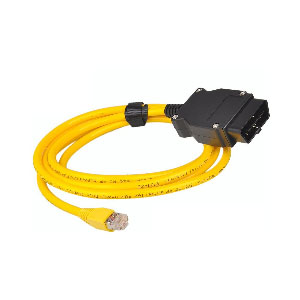
BMW ENET cable (OBD to Ethernet)
Use the OBD-Ethernet socket shown below. A separate accessory/CAN socket is not an Ethernet connection.
Equipment
- BMW ENET cable (OBD to Ethernet) — The usual yellow BMW ENET-style cable: OBD-Ethernet plug at one end, Ethernet at the other. Use a cable wired for Tesla-compatible Ethernet diagnostics.
- Laptop with internet — Use Chrome. Keep Wi-Fi or a phone hotspot connected while the cable connects the car.
-
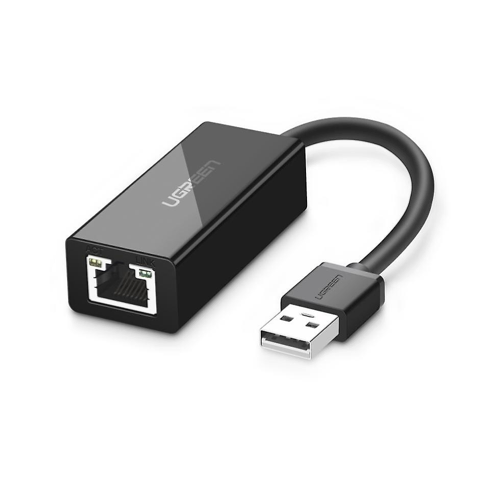
USB-to-Ethernet adapter, if needed — Needed only if your laptop has no network-cable socket. Match USB-A or USB-C to your laptop.
Connect the cable
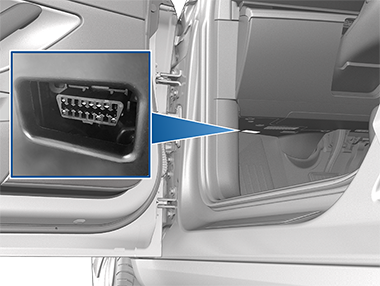
Driver footwell, under the dashboard
-
1. Locate the DoIP socket
Look beneath the dashboard on the driver’s side for the OBD-Ethernet socket.
-
2. Connect the approved cable
Match the wide and narrow edges of the plug. Push it straight into the confirmed DoIP socket without forcing it.
-
3. Connect the laptop
Connect the Ethernet end to the laptop or USB adapter. Press the brake to wake the parked vehicle. Keep the cable clear of the pedals.
Computer setup
- Keep Wi-Fi connected to the internet.
- On Windows, press Win + R, type
ncpa.cpl, and press Enter. Open the wired adapter’s Properties, then Internet Protocol Version 4 (TCP/IPv4) → Properties. - Set the wired Ethernet adapter to IP address
192.168.90.125and subnet mask255.255.255.0(prefix length24). Leave the gateway and DNS empty. - Open Diagnostics in Chrome and select Connect.